1
2
1
0
Planning in action
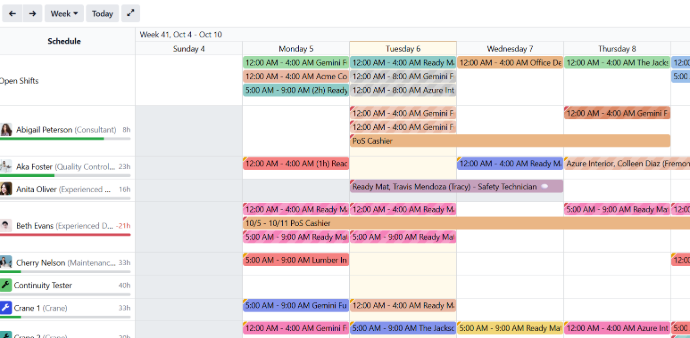
Your team's week
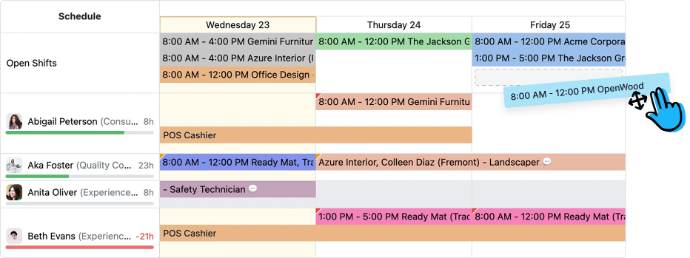
Shifts by person and role, each color-coded, in the Gantt view.
CUSTOMER PROFILE
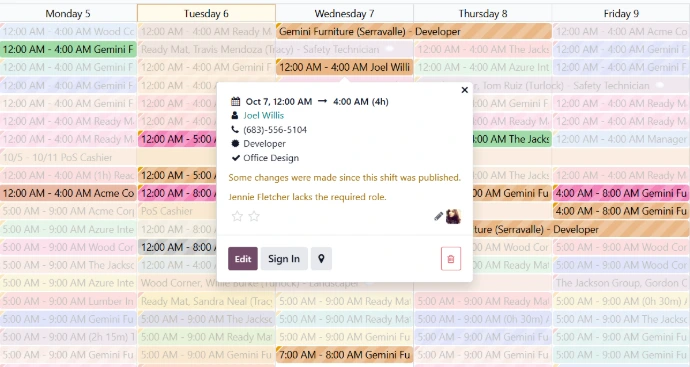
Unassigned for now
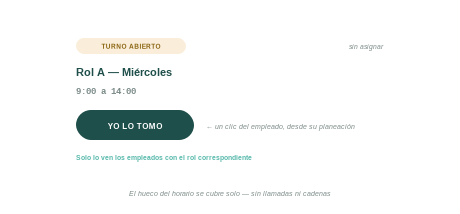
An open shift that any employee with the right role can claim.
LEAD CAPTURE
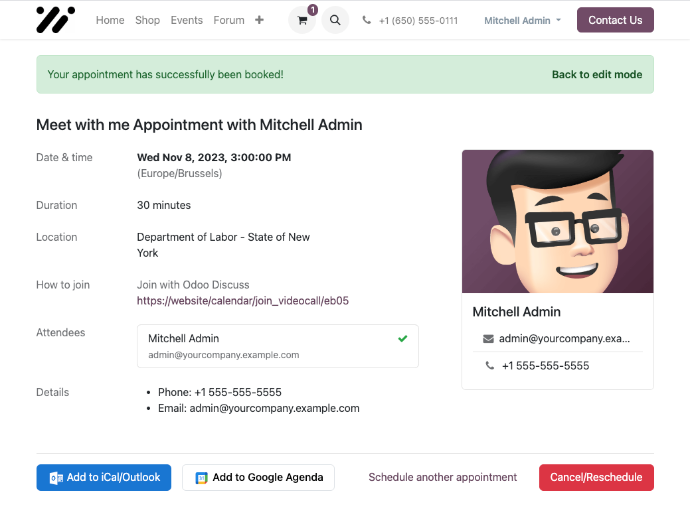
Schedules, delivered
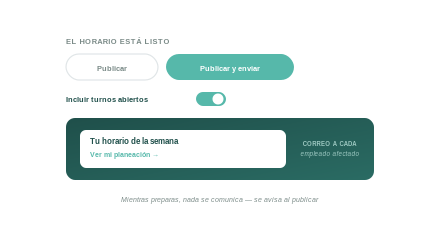
Publish & Send: every affected employee receives an email.
AUTOMATION
Your regular schedules
Preconfigured start times and durations, ready to assign.
Schedules built by dragging, not calling
Odoo Planning works with shifts, roles, and resources: each role has a color and each employee has assigned roles — respected when filtering templates, notifying staff of open shifts, and auto-assigning. Edit schedules directly on the Gantt chart, publish when ready, and automatically email affected staff.
Shifts organized and color-coded by role
Editable Gantt: reassign, split and duplicate without opening
Shift templates with predefined start times and durations
Publish, or publish and send by email
Everything your planning needs, already included...
Color-coded roles
Edit directly on the Gantt
Shift templates
Open shifts
Publish and send
Publishing commits the schedule; Publish & Send also emails affected employees with access to their Planning — and you decide whether open shifts are included.
Roles that determine access
Employee roles filter shift templates, limit open-shift notifications to relevant staff, and guide auto-assignment — including schedules for sold services.
The unassigned shift
finds someone to take it
Employees claim shifts with one click
Notifications and self-assignment filtered by role
The schedule is published
and it reaches everyone automatically
Publish: confirm the schedule
Publish and send: email everyone affected
Include or exclude open shifts
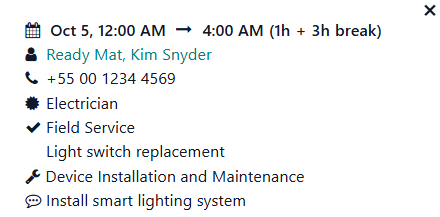
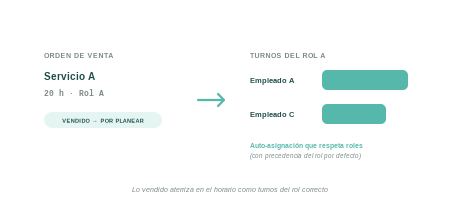
The service sold
appears on the schedule
Services sold linked to roles and shifts
Self-assignment prioritizes the default role
WHO IT'S FOR
If weekly shifts are arranged through WhatsApp, this is for you.
Restaurants and hospitality
Shifts by role — kitchen, dining room, bar — filled without phone calls.
Multi-location retail
Each store's weekly schedule in Gantt, with templates for regular shifts.
Services with field crews
Sold services become shifts for the correct roles, with automatic assignment.
Shift-based operations
Reassign, split, and duplicate directly on the dashboard when plans change.
FREQUENTLY ASKED QUESTIONS
What we get asked most before getting started
01 How is the schedule created?
In Gantt, reassign, reschedule, resize, split, and duplicate shifts directly without opening each. Roles are color-coded, and templates speed up recurring schedules.
02 What are shift templates?
03 What is an open shift?
An unassigned shift remains open. Employees with the corresponding role can see it in Planning and claim it with one click — ideal for covering gaps without chasing anyone.
04 How does the team find out?
Once published and sent, every affected employee receives an email linking to their schedule, where they can see their shifts — and you decide whether to include open shifts. Each user sees their own schedule when opening the app.
05 What are roles for?
To make sure roles are respected: shift creation shows only templates for employees' roles; open-shift notifications reach only eligible people; and auto-assignment — including sold services — follows assigned roles, prioritizing default roles.
06 Does it integrate with Sales?
Yes: the Planning and Sales integration links sold services with roles and shifts so you can plan sales orders directly as team shifts.


