1
a floor plan matching your actual space: tables, seats, and even decorations
0
paper tickets sent to the kitchen: orders go straight to the printer or screen
QR
by table: customers view the menu, order, and pay from their phones
100%
seamless bill handling: print first, split bills, and include tips
PoS Restaurant in action
FLOOR PLAN
YOUR TABLES, IN REAL TIME
Occupancy, reservations, and kitchen orders visible — navigate between floors and jump straight to tables by number.
ORDER
ORDERS ON TIME
Starters first, main courses later: each course is sent to the kitchen in sequence at the right moment.
KITCHEN
ORDER IN THE KITCHEN
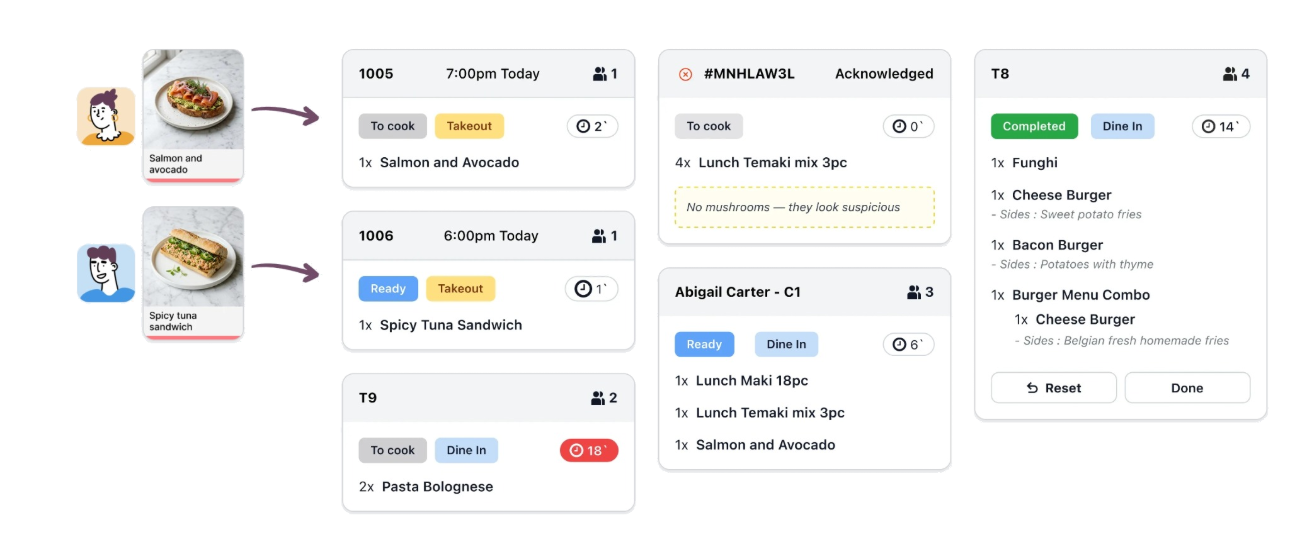
Every kitchen order has stages — to prepare, ready — and time alerts for each stage. Separate screens for kitchen, bar, or pickup.
ACCOUNT
SPLIT THE BILL WITHOUT A CALCULATOR
Select each person's items to split the bill — with early printing and tips included in payment.
One complete system for your entire sales team
Odoo PoS Restaurant isn't a cash register with an extra module bolted on. Tables, orders, the kitchen, checks, and payments live in one system — servers see table status in real time, kitchen and bar get their own orders, and customers who want self-service can order for themselves.
Floor and table plan matching your restaurant layout
Real-time status: occupied, reserved, order in kitchen
Kitchen and bar orders sent to printers or displays
Service timing: each step runs in sequence
Preprinted bill, split payments and tips
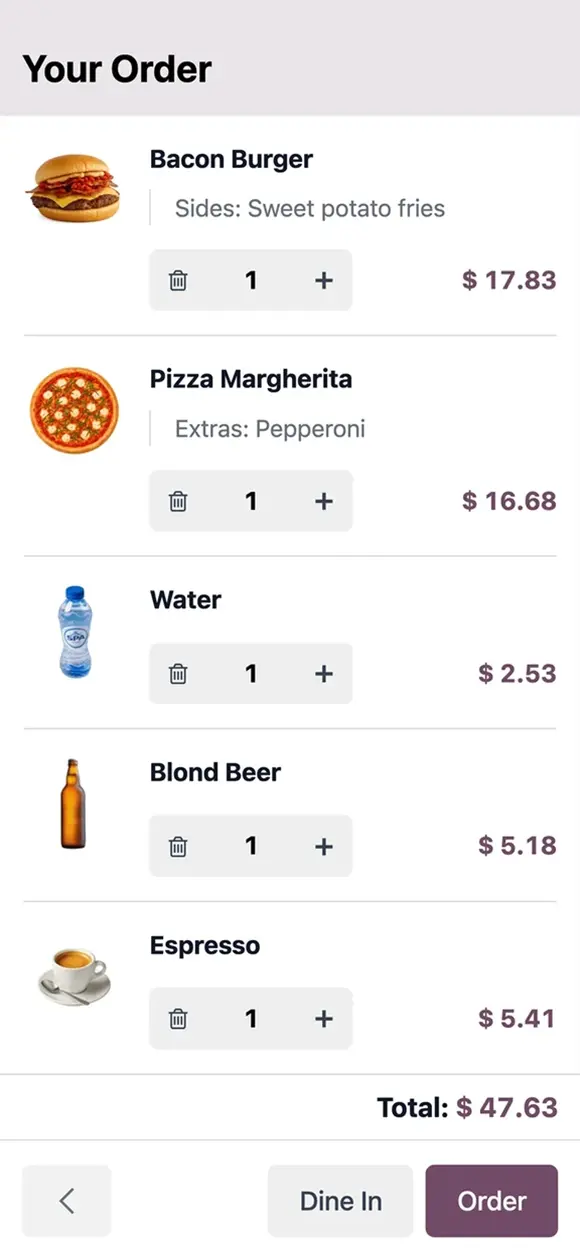
QR menu by table: customers order from their phones
Everything your service needs, already included...
Live table plans
Floors such as dining rooms and terraces, with real-time table statuses — and a visual editor for tables, seats, and even decor.
Kitchen orders without shouting
Preparation printers by category — drinks to the bar, meals to the kitchen — or a preparation screen with stages and time alerts.
Service times
The Course button splits an order into courses and sends them to the kitchen in sequence. With presets for dine-in, takeout, or delivery.
A seamless checkout experience
Print bills before payment, split them by selecting each person's items, and include tips in the charge.
Tables that move
Did they move tables or combine two parties? Transfer the order to an empty table or merge it with one at an occupied table — right from the floor plan.
Notes sent to the kitchen
Allergies, preferences, and special requests captured in the order — by the server, customer's phone, or kiosk — go straight to the kitchen or bar.
POS + PREPARATION SCREEN
The kitchen sees what it needs,
the bar sees only what it needs
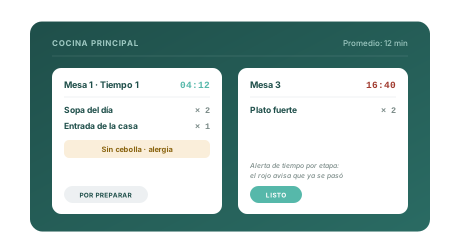
Each order appears on the appropriate screen based on its category — main kitchen, bar, or pickup area — with configurable stages like "to prepare" and "ready," colors, and time alerts at each stage to keep things moving. The screen even shows the team's average preparation time.
Multiple displays: kitchen, bar and pickup area
Stages with individual time alerts
Order ready notification via SMS or WhatsApp (Enterprise module)
POS + RESERVATIONS
Bookings come in automatically
and appear on the floor plan
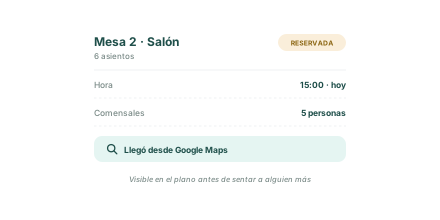
Accept reservations from your website, Google Maps, and Google Search — and manage them directly in Point of Sale. Reserved tables are marked on the floor plan with their reservation times so staff can see them before seating other guests.
Bookings from your website, Google Maps, and Google Search
Managed within the same Point of Sale
The table shows its booking and time on the floor plan
POS + QR SELF-SERVICE
The customer who wants to order independently,
orders automatically
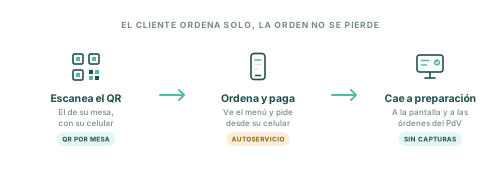
Every table gets a QR code: customers scan, view the menu, and — if enabled — order and pay from their own phones. Orders go straight to the preparation screen and Point of Sale order list like any other order. Also available in kiosk mode with a touchscreen.
QR by table: menu only, or menu plus ordering and payment
Touchscreen kiosk mode for counter ordering
Complimentary physical QR codes matched to your floor plan
WHO IT'S FOR
If kitchen orders travel on scraps of paper and shouted instructions, this is for you.
Table-service restaurants
Waitstaff service, multiple courses, and relaxed dining — live floor plans, timed kitchen orders, and split checks without a calculator.
Bars and taverns
The bar gets drinks and the kitchen gets snacks — each team handles its own orders, with tips included in payment.
Coffee shops
Fast table turnover, takeaway presets, and QR menus for guests who prefer to order without standing in line.
Fast food and food courts
Self-service kiosks, direct orders without tables, and preparation screens for high-volume service without missing a single order.
FREQUENTLY ASKED QUESTIONS
What we get asked most before getting started
01 How does the table plan work?
Create floors — dining room, terrace — and arrange tables with a visual editor: add, rotate, or remove tables and seats, and customize the background and decor. During service, the plan shows every table's real-time status: occupied, reserved with a time, order in the kitchen, or delayed. Jump to a table by number or create orders without a table.
02 How do orders reach the kitchen?
Two options: preparation printers by product category — drinks print at the bar, meals in the kitchen — or a preparation screen showing each order with configurable stages (to prepare, ready), colors, and time alerts. You can use multiple screens: main kitchen, bar, and pickup area, each with its own categories.
03 Can I manage service times?
Yes. The course button splits an order into courses — appetizers, main courses, dessert — and sends them to the kitchen in sequence: the first is sent when the order is placed, and the rest when the server requests them. Presets distinguish dine-in, takeaway, and delivery, with the option to apply different taxes to takeaway food.
04 How are bills split and tips handled?
With bill splitting enabled, select each person's items and separate the order. You can print the check before payment — as usual — and add tips directly to payment.
05 Can customers order on their own?
Yes. Each table has a QR code: customers scan it to view the digital menu — and, if you enable the full experience, order and pay on their phones. Orders appear automatically on the preparation display and in the Point of Sale order list. There's also a self-service touchscreen kiosk mode, and you can request complimentary physical QR codes customized to your floor plan.
06 What if customers change tables or combine tables?
From an order, choose Transfer or Merge and select a destination table on the plan. If available, diners and their orders transfer completely; if occupied, both tables' orders merge into one.
Point of Sale connected to your entire operation

Inventory
Ingredients and stock behind every dish — with the ability to hide sold-out menu items in one tap, both in PoS and online channels.

Website
The restaurant's digital front door: the website bringing reservations directly to your floor plan.

Invoicing
From receipt to invoice without re-entering data — Point of Sale transactions connected to Accounting.

Employees
Servers, cashiers, and kitchen staff in employee records — the people behind each shift, with Point of Sale access.
Tell us how your restaurant operates today
A Wayakna consultant will review your situation — how many tables and floors you have, how orders reach the kitchen today and whether you want QR self-service — and recommend the right implementation without unnecessary complexity.