4
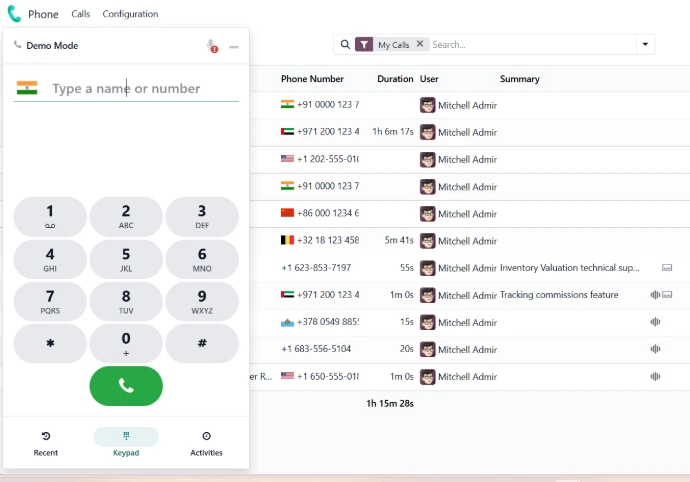
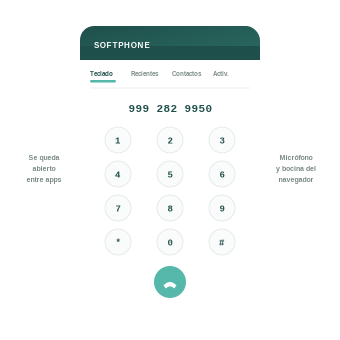
widget tabs: Dial Pad, Recents, Contacts, and Activities
0
no physical phones required: place calls directly from your browser
1
a queue of today's calls — assigned to you and ready to dial
3
apps integrated into the activity queue: CRM, Project, and Helpdesk
VoIP App in action
SOFTPHONE
Your phone in your toolbar
The widget with four tabs, available wherever you are.
QUEUE
Today's calls
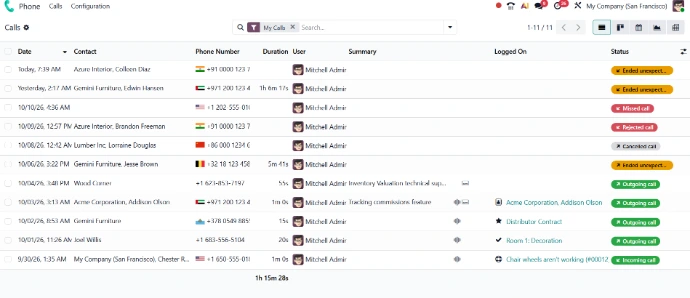
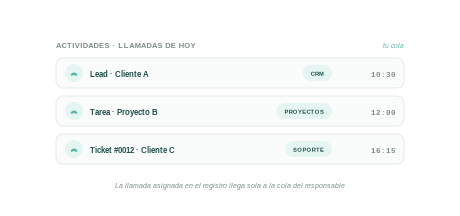
Today's assigned calls, all on one list.
INCOMING
The widget rings
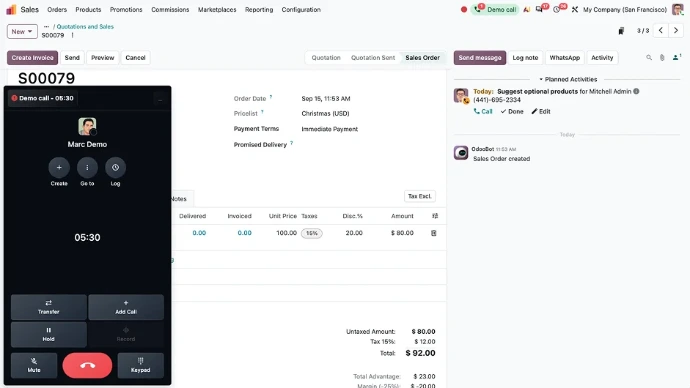
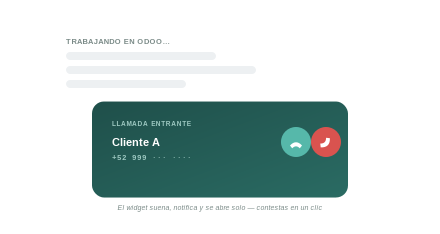
A call comes in, a notification appears, and you answer in one click.
TRANSFER
Transfer the call
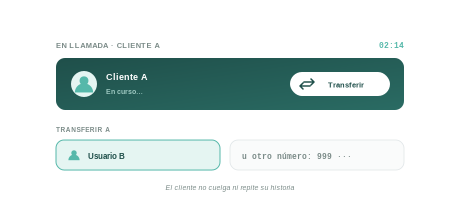
Calls transferred to another user or number.
A phone system that lives where your customers do
Odoo VoIP has one simple purpose: make calls without a phone. Open the widget from the top bar with one click and keep it open across apps. Since the activity queue integrates with CRM, Project, and Helpdesk, calls assigned through those workflows automatically appear on today's list.
Browser-based softphone, no physical phone required
Widget that stays open across apps
Four tabs: dial pad, recent calls, contacts and activities
Queue of assigned calls due today
Incoming calls with ringing and notifications
Transfer to another user or phone number
Everything you need, already included...
Open it once, keep it with you
Click the softphone icon in the top bar to open the widget — it stays open as you move between Odoo applications.
Four tabs
A dial pad, Recents for call history, Contacts to find people, and Activities to manage everyday calls.
Today's call queue
The Activities tab shows calls assigned to you and due today — only those scheduled for today appear in your queue.
Integrated into your workflows
The activity queue integrates with CRM, Project, and Helpdesk: assign calls in those records and they appear in the assignee's widget queue.
Incoming calls with alerts
When a call comes in while you're using Odoo, the widget rings and shows a notification — answer with the green button, no phone needed.
Easy transfers
Answer and transfer calls to another user or phone number directly from the widget.
VOIP + ACTIVITIES
Your call list
comes together automatically
All contacts and customers you need to call are in one place: the widget's Activities tab. Because it integrates with CRM, Project, and Helpdesk, calls assigned to you on a lead, task, or ticket appear in your queue — only today's calls, keeping the list actionable.
Calls assigned to you, in the queue
Only those due today — an actionable list
Integrated with CRM, Project and Helpdesk
VOIP + INCOMING CALLS
The call comes in
and the system notifies you
When you work in Odoo, incoming calls ring the widget and display notifications — opening it automatically. Answer using the green button with your browser's microphone and speakers: your computer is the phone.
The widget rings and shows notifications
Opens automatically when a call comes in
Your browser's microphone and speakers
VOIP + TRANSFERS
The right call
to the right person
Answer calls in the widget and, if another person should handle them, transfer to another user or number using the call controls — customers don't have to hang up, redial, or repeat their story.
Transfer directly from the widget
Customers never have to repeat their story
WHO IT'S FOR
If your sales team works through email and spreadsheets, this is for you.
Telephone sales teams
Today's call list prepared from CRM, ready to dial.
Call center support teams
Calls linked to support tickets, assigned and queued for the owner.
Offices without a switchboard
A softphone in every browser — no devices or wiring.
Distributed teams
Everyone calls from the same system, wherever they work.
FREQUENTLY ASKED QUESTIONS
What we get asked most before getting started
01 Do I need a physical phone?
No — that's the whole point: make calls without a phone. The widget uses your browser's microphone and speakers with permissions enabled.
02 How do I open the phone?
With the softphone icon in the top corner of the navigation bar: one click shows it, another hides it — and it stays open while you navigate other apps.
03 What does the widget include?
Four tabs: dial pad for numbers, recents for call history, contacts to find people to call, and activities to manage today's calls.
04 How do I know whom to call today?
The Activities tab lists calls assigned to you and due today — only calls scheduled for today appear in the queue. Since it integrates with CRM, Project, and Helpdesk, calls assigned through those records appear automatically in the owner's queue.
05 What happens when someone calls me?
The widget rings, displays a notification, and opens automatically for incoming calls while you use the database. Answer using the green phone button.
06 Can I transfer calls?
Yes: answer calls in the widget and transfer them to another user or phone number using the call controls.


