Skip to Content

3

automatic intake channels: email, website forms, and Live Chat — plus manual creation

2

assignment methods: random (even distribution) or balanced (to the agent with the fewest open tickets)

1

an SLA policy with deadlines calculated using your business hours

100%

customer-rated support tickets — with the option to publish the ratings

Helpdesk in action

PIPELINE

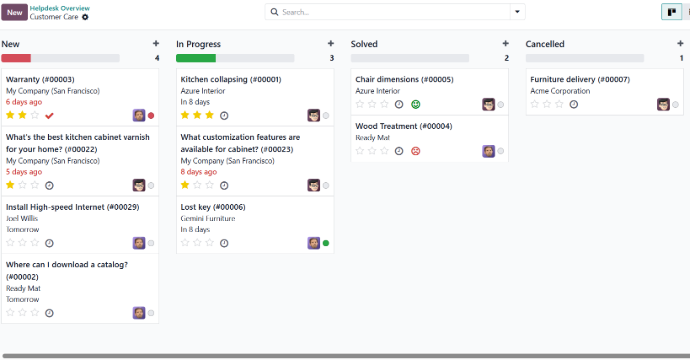
Tickets by stage

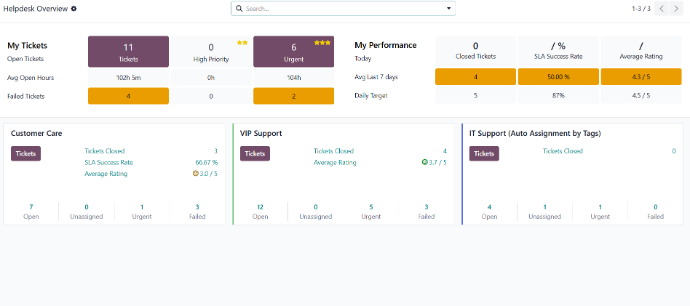
The team's dashboard with tickets advancing through stages.
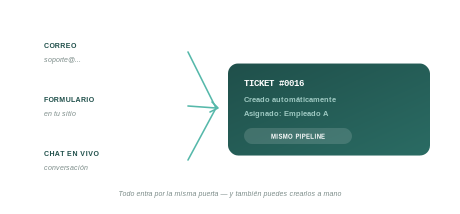
CHANNELS

Everything goes to the same place

Email, website forms, and Live Chat creating tickets automatically.
SLA

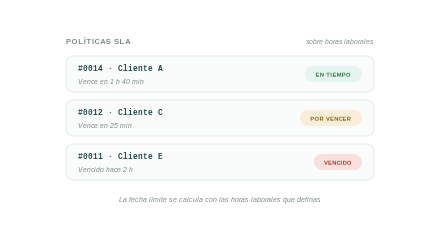
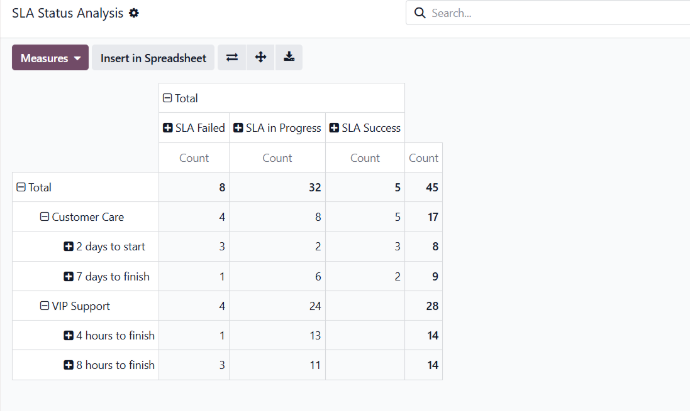
Time tracking under control

Policies that protect your team's response times.
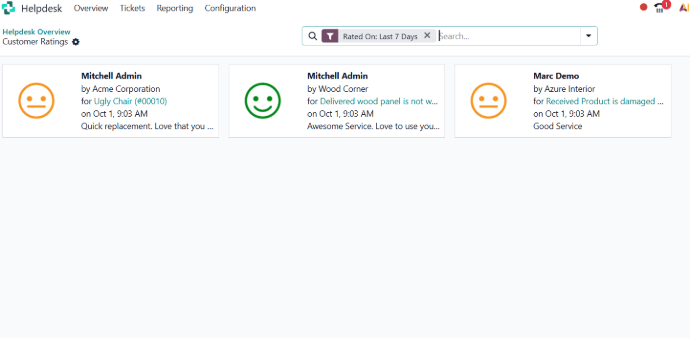
RATINGS

Customers share feedback

Satisfaction tracked by ticket — and publishable on your website if you wish.

Support that no longer lives in a shared inbox
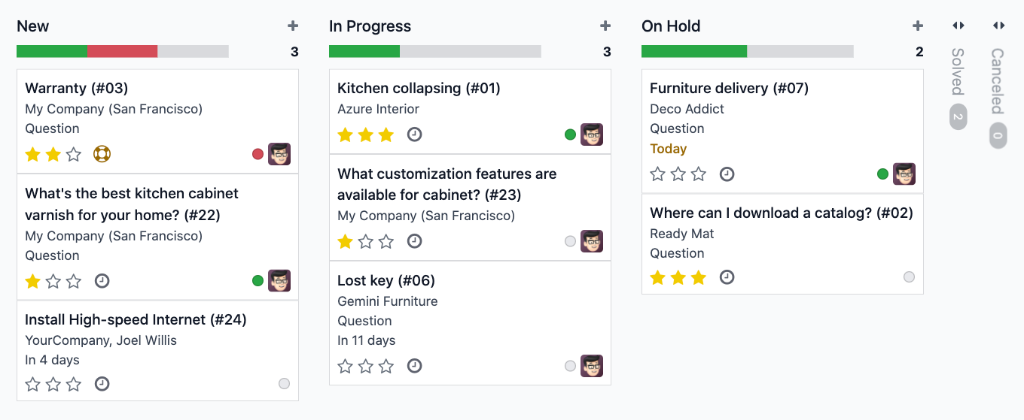
Odoo Helpdesk organizes support into teams, each with members, channels, and stages assignable to one or more teams. Emails to an alias, website forms, and Live Chat all create tickets automatically, with random or balanced assignment. SLA policies and ratings take care of the rest.

 Support teams with their own members and visibility settings

 Tickets from email, website forms and Live Chat

 Customizable stages assignable to one or more teams

 Random or balanced assignment

 SLA policies based on your working hours


 Customer ratings by ticket

Everything your event needs, already included...

1

Teams tailored to your needs

Create as many support teams as you need, choose their members and visibility, and manage each team's tickets from its own dashboard.

2

Tickets created automatically

Emails to the team alias create tickets automatically; website forms and Live Chat do too. You can always create tickets manually.

3

Fair distribution

Random assignment — everyone receives the same number — or balanced assignment: tickets go to the person with the fewest open tickets.
4

SLAs that keep watch

Enable SLA policies to ensure tickets are handled on time, with deadlines calculated according to your configured working hours.

5

Customers rate the service

Customer ratings track satisfaction for every ticket — and you can publish team ratings on your website.

6

Automatic closing

Inactive tickets close themselves: set inactivity days and applicable stages — no phantom tickets clogging your inbox.

HELPDESK + CHANNELS

Email, website and chat

come through the same door
With an email alias enabled, every customer message automatically becomes a ticket. The website support form creates tickets, while Live Chat converts conversations into tickets — all in the same team pipeline, without separate inboxes.

 Email alias that automatically creates tickets

 Support form on your website

 Live Chat connected to the pipeline
HELPDESK + SLA

Response time,

with rules and deadlines
SLA policies ensure tickets are handled on time: define the policy, and deadlines follow your configured working hours — teams see status indicators and managers see compliance.

 SLA policies by team

 Deadlines based on business hours

 Visible response times

HELPDESK + RATINGS

Customer service gets rated

and it's worth showing off
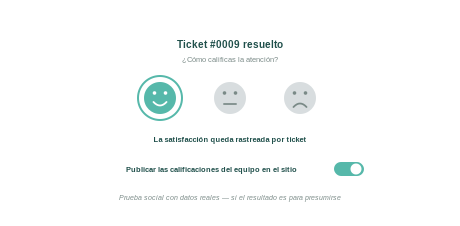
With ratings enabled, customers rate service for each ticket and satisfaction is tracked. If the results are worth showing off, publish team ratings on your website — social proof backed by real data.

 Satisfaction tracked by ticket

 Team ratings that can be published on the website
 Measure the customer experience

WHO IT'S FOR 

If support happens in a shared inbox where everything gets lost, this is for you.


Technical support and after-sales service
SLA-based tickets with traffic-light status — nothing goes unanswered beyond its deadline.

 
Teams overwhelmed by email
The email alias turns every email into a ticket and assigns it automatically.

 
Support services billed to clients
Time recorded on tickets and linked to a project.
 
Brands measuring customer service
Ticket ratings — publishable on your website.

FREQUENTLY ASKED QUESTIONS

What we get asked most before getting started

01 How do I ensure response time targets are met?
With SLA policies enabled, tickets are handled on time, with deadlines determined by the working hours you set for the team.

02 How do tickets come in?

Through the channels enabled for each team: email aliases create tickets from messages, website forms accept requests through support pages, and Live Chat converts conversations into tickets. You can also create them manually.

03 How are tasks distributed among the team?

With your chosen assignment method: random, where users receive equal ticket counts, or balanced, where tickets go to whoever has the fewest open tickets.

04 Can I have different workflows for each team?

Yes — stages can be created and assigned to one or more teams, so each team has custom stages and can share some where useful.

05 How do I know whether customers were satisfied?

By enabling customer ratings, satisfaction is tracked for each ticket. You can also publish team ratings on your website if you wish.

06 What about tickets no one has touched?

Tickets close themselves when auto-close is enabled: configure inactivity days and applicable stages. Time logged on team tickets can also be linked to projects — support work is measurable too.

CRM connected to your entire operation


Live Chat

Website conversations that become team tickets.

View module →


Project

The project linked to ticket hours.

View module →


Timesheets

Support time, logged and measurable.

View module →


Forum

The community that answers questions before tickets need to be created.

View module →

Tell us how you support customers today

A Wayakna consultant will review your situation and recommend the right implementation without unnecessary complexity.